ChatGPT usage guide
ChatGPT is a powerful tool, but maximizing its potential requires understanding how to interact with it effectively. This guide will walk you through different approaches, from simple prompts to more advanced features like Projects and Custom GPTs, with detailed instructions on configuration.
1. Direct prompting: refining your requests
The most basic way to use ChatGPT is through direct prompting – typing in your request and receiving a response. However, the quality of the response is directly tied to the quality of your prompt. Here’s how to improve your prompting:
- Be specific: Avoid vague requests. Instead of "Write something about marketing," try "Write a short social media post promoting a new line of organic coffee, targeting millennials. Include relevant hashtags."
- Define the role: Tell ChatGPT who it is. For example, "You are a seasoned marketing consultant. Explain the benefits of content marketing to a small business owner in a clear and concise manner."
- Set the tone: Specify the desired tone. "Write a professional and formal email to a client apologizing for a delay." or "Write a friendly and casual blog post about the benefits of hiking."
- Provide context: Give ChatGPT enough background information to understand your request. "I’m writing a children’s story about a friendly dragon. The dragon’s name is Sparky and he loves to help people."
- Iterate: Don’t be afraid to refine your prompt based on the initial response. If the first attempt isn’t quite right, provide feedback and ask ChatGPT to try again.
- Avoid mixing tasks: Focus on one request per prompt. Breaking down complex tasks into smaller steps yields better results. For example, instead of "Write a blog post and create social media posts for it," first ask it to write the blog post, then ask it to create social media posts based on that content.
You can customize the prompt adding some configuration. Access "Customize chatGPT" and fill the information:

Tips: you can use "constants" in the prompt. For example, add this to "Anything else" section:
“When the user types $TO, assume the role of a data analyst. The format of the output will be a table. The table will have a title, the first row of column headers will be in bold and there will be a one-line summary at the end."
In that way, you don’t have to type that detailed specific prompt for getting this output format result each time you want it. Example:
"Having the attached excel document, make a summary $TO"
2. Projects: long-term, thematic work
For tasks that require ongoing effort and consistency – like managing a marketing campaign, developing a complex document, or tracking a long-term project – ChatGPT Projects are invaluable.
What are projects? Projects create dedicated workspaces within ChatGPT. All chats within a Project share the same context and instructions.
How to create a project:
Access projects: In the ChatGPT interface, look for the "Explore GPTs" option in the left sidebar. Click on it. Then, click on "New Project".
Name your project: Give your project a descriptive name. For example, "Marketing Campaign – Summer Launch."
Start chatting: You’ll be automatically directed to a new chat window within your project.
Adding instructions to a project:
Access Project settings: Within the project chat, click on the three dots (… ) in the top right corner. Select "Add instructions".
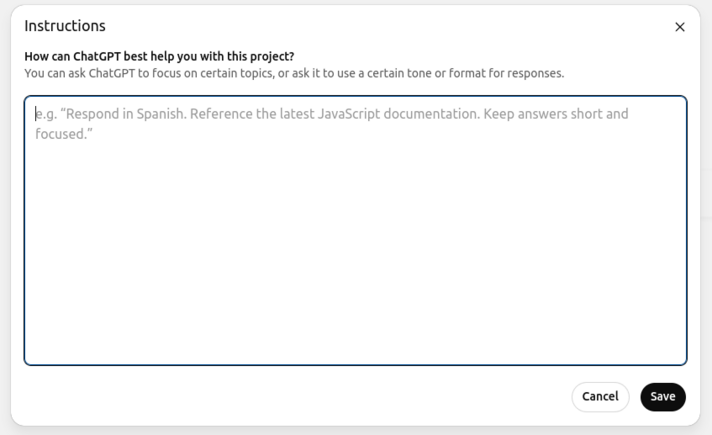
Enter instructions: A text box will appear. Here, you can enter detailed instructions for the project. This is where you define the overall goal, tone, and any specific guidelines. Be as comprehensive as possible. For example: "You are assisting with a marketing campaign for a new line of eco-friendly cleaning products. The target audience is environmentally conscious millennials. Maintain a friendly, informative, and persuasive tone. Focus on the benefits of sustainability and natural ingredients."
Save Changes: Click "Save" to apply the instructions.
Adding files:
if you want to reference files, add files using the button over the main chat text input.
Benefits:
Consistency: Ensures a consistent voice and approach across all related tasks.
Context retention: ChatGPT remembers previous conversations within the Project, eliminating the need to repeat information.
Organization: Keeps related work neatly organized in one place.

3. Custom GPTs: Specialized AI assistants
Custom GPTs take personalization to the next level. They allow you to create specialized AI assistants tailored to specific tasks.
What are custom GPTs? Custom GPTs are versions of ChatGPT configured with specific instructions, knowledge, and capabilities.
Creating a custom GPT:
Access GPT builder: In the ChatGPT interface, click on "Explore GPTs" in the left sidebar. Then, click on "Create a GPT".
Choose a starting point: You can start with "Create new GPT" for a blank slate, or choose a pre-made GPT as a template.
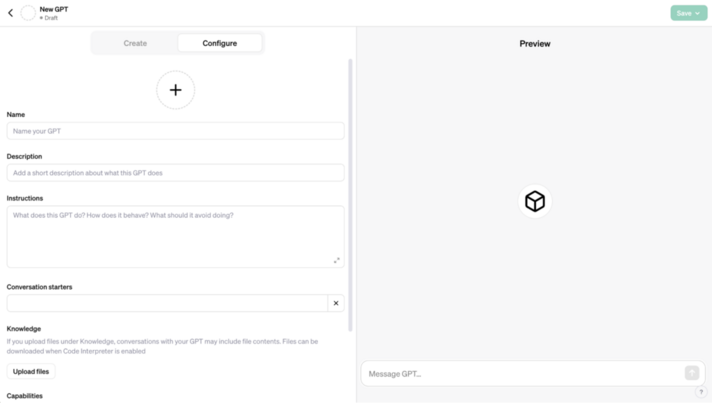
Configure name & description:
Name: Give your GPT a clear and descriptive name. For example, "Legal Contract Analyzer."
Description: Provide a concise summary of the GPT’s purpose. For example, "This GPT analyzes legal contracts, identifying key clauses and potential risks."
Configure instructions: This is the most crucial step.
Detailed instructions: Write a comprehensive set of instructions that define the GPT’s behavior. Include:
Role: "You are a highly experienced legal professional specializing in contract law."
Objective: "Your primary goal is to analyze contracts and identify potential risks and areas for negotiation."
Specific tasks: "You will identify clauses related to liability, termination, payment terms, and intellectual property."
Output format: "Present your analysis in a bulleted list, highlighting key findings and providing a risk assessment for each clause."
Constraints: "Do not provide legal advice. Only identify potential issues and suggest areas for further review by a qualified attorney."
Configure knowledge:
Upload files: Add relevant documents (PDFs, text files, CSVs) to provide the GPT with a knowledge base. For example, upload sample contracts, legal definitions, or industry standards. This allows the GPT to draw upon specific information when responding.
Configure capabilities:
Web browsing: Enable this if the GPT needs to access external information. Use with caution, as it can introduce unpredictable results.
Data analysis: Enable this if the GPT needs to analyze data from uploaded files.
Image generation: Enable this if the GPT needs to create images.
Code interpreter: Enable this if the GPT needs to execute code.
Actions: This allows you to connect your GPT to external APIs and services. (Advanced feature)
Configure conversation Starters:
Add prompts: Provide example prompts to help users get started. For example, "Analyze this contract and identify any clauses that could be unfavorable to my company."
Preview & test: Click "Preview" to test your GPT. Experiment with different prompts and refine the instructions as needed.
Publish: Once you’re satisfied, you can publish your GPT. You can choose to make it private (only accessible to you), share it with a link, or list it in the GPT Store (if available).

Attachments
- Media:UserDocumentation_Knowledge_Central_KC_Global_KC_AI_KC_AIs_providers_ChatGPT_usage_guideimage-20250904-110942.png
- Media:UserDocumentation_Knowledge_Central_KC_Global_KC_AI_KC_AIs_providers_ChatGPT_usage_guideimage-20250904-111457.png
- Media:UserDocumentation_Knowledge_Central_KC_Global_KC_AI_KC_AIs_providers_ChatGPT_usage_guideimage-20250904-110942.png
- Media:UserDocumentation_Knowledge_Central_KC_Global_KC_AI_KC_AIs_providers_ChatGPT_usage_guideimage-20250904-111457.png

